Quick answer: Gcore uses a Permanent API Token for authentication.
What does this guide cover?
Learn how to obtain API credentials from the official Gcore console and save them in ApiDo → User Center → API Credentials for batch DNS, nameserver updates, and domain automation.
Step-by-step instructions
Each step includes official console screenshots — follow the highlighted areas.
Step 1: Sign in to Gcore
- Open the official Gcore website and sign in to your account.
- Complete any required email or identity verification before creating API keys.
Official link: https://portal.gcore.com/
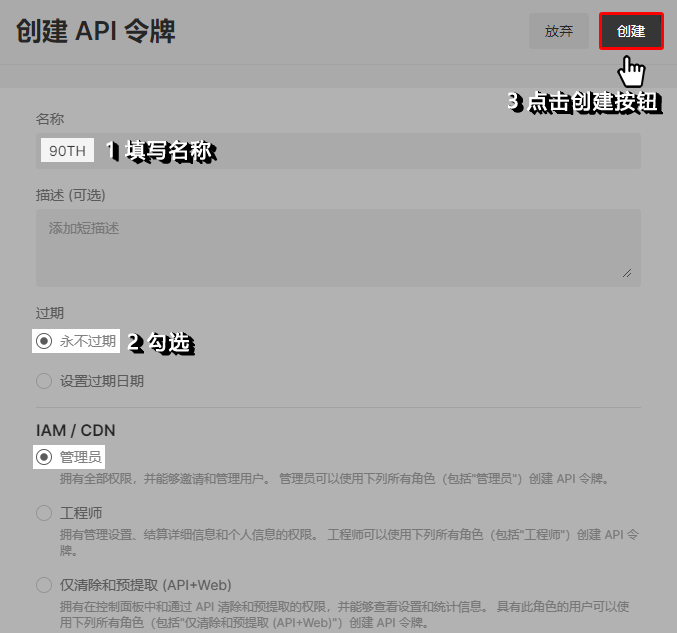
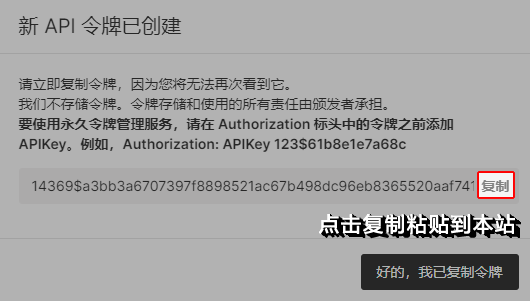
Step 2: Create or locate API credentials
- In the Gcore console, open API, developer, or integration settings.
- Generate a new API key/token if needed and copy each required field.
Official link: https://portal.gcore.com/profile/api-tokens
Step 3: Verify and save on ApiDo
- In ApiDo, go to User Center → API Credentials and select this provider.
- Paste each field, click Verify credentials, then Save credentials after success.
Enter and verify credentials on ApiDo
- Log in to ApiDo and open User Center → API Credentials
- Select provider: Gcore
- Enter a credential alias and fill in each API field
- Click "Verify credentials", then "Save credentials" after success
Tips
- Use API keys/tokens — not your login password — unless the provider explicitly requires it.
- If verification fails, check field names, extra spaces, IP whitelist, and API permissions.
FAQ
How do I add Gcore API credentials on ApiDo?
After login, go to User Center → API Credentials, select Gcore, follow this guide, verify, then save.
What if Gcore credential verification fails?
Check for wrong fields (e.g. login password instead of API password), extra spaces, or wrong environment keys. Some providers require API access or IP whitelist.
Are API credentials secure on ApiDo?
Credentials are encrypted at rest and transmitted over HTTPS. Do not share keys; rotate them in your provider console when done.
What else should I know about Gcore API?
Use API keys/tokens — not your login password — unless the provider explicitly requires it.
What else should I know about Gcore API?
If verification fails, check field names, extra spaces, IP whitelist, and API permissions.